Documentation
Everything Happy Tracker does, written out with screenshots — and the eight tutorial videos alongside, so you can read it or watch it.
Installing the app and using it daily
Happy Tracker runs in any browser, and as a native desktop tracker for Mac, Windows and Ubuntu. The desktop app is what records activity and screenshots; the browser can do everything else.
Getting the app
Sign in on the web, open App Download in the left menu, and pick your platform. The page always serves the current build, so there is no version to choose.
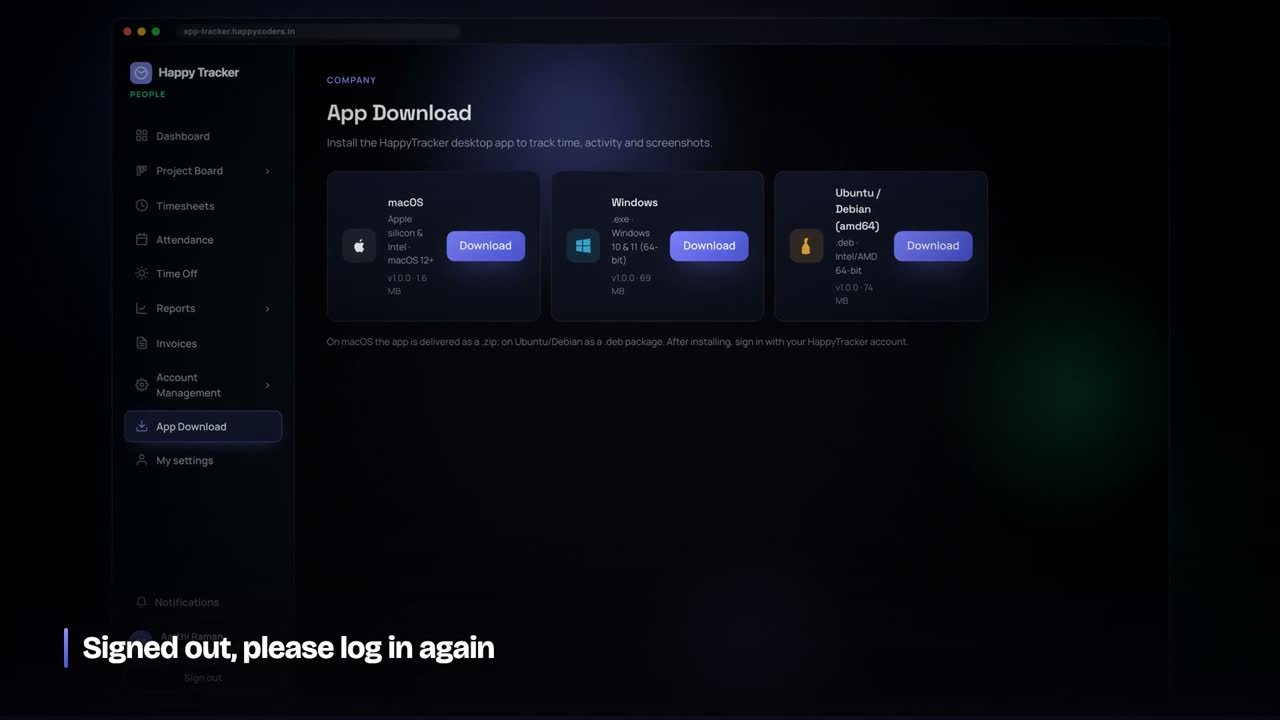
- Mac — open the .dmg and drag Happy Tracker to Applications.
- Windows — run the installer. If Windows shows a warning on an unsigned build, choose More info, then Run anyway.
- Ubuntu — install the .deb with your software centre, or
sudo dpkg -ifrom a terminal.
The first run
Sign in with the same email and password you use on the web. If your email has not been verified yet the app will say so — verify from the link in your invitation email first, then sign in again.
On a Mac the tracker asks for two system permissions. Accessibility lets it read which application is in front. Screen Recording lets it capture, and is only needed if your company has screenshots switched on. Both are granted in System Settings and the app must be restarted afterwards.
The tracker reads which window is in front. It does not read what is inside it. There is no keystroke logging, no clipboard capture and no recording of any kind while you are clocked out.
A normal day
- Open the tracker and pick the project, and the task if your team uses them.
- Press Clock in. The timer starts and recording begins.
- Use Break for lunch. Break time is recorded separately and never counts as worked time.
- Press Clock out at the end of the day. Recording stops immediately and the tracker says so.
If something goes wrong
- “Request timed out” — the machine could not reach the server. Check the connection; your tracked time is queued locally and uploads when it returns.
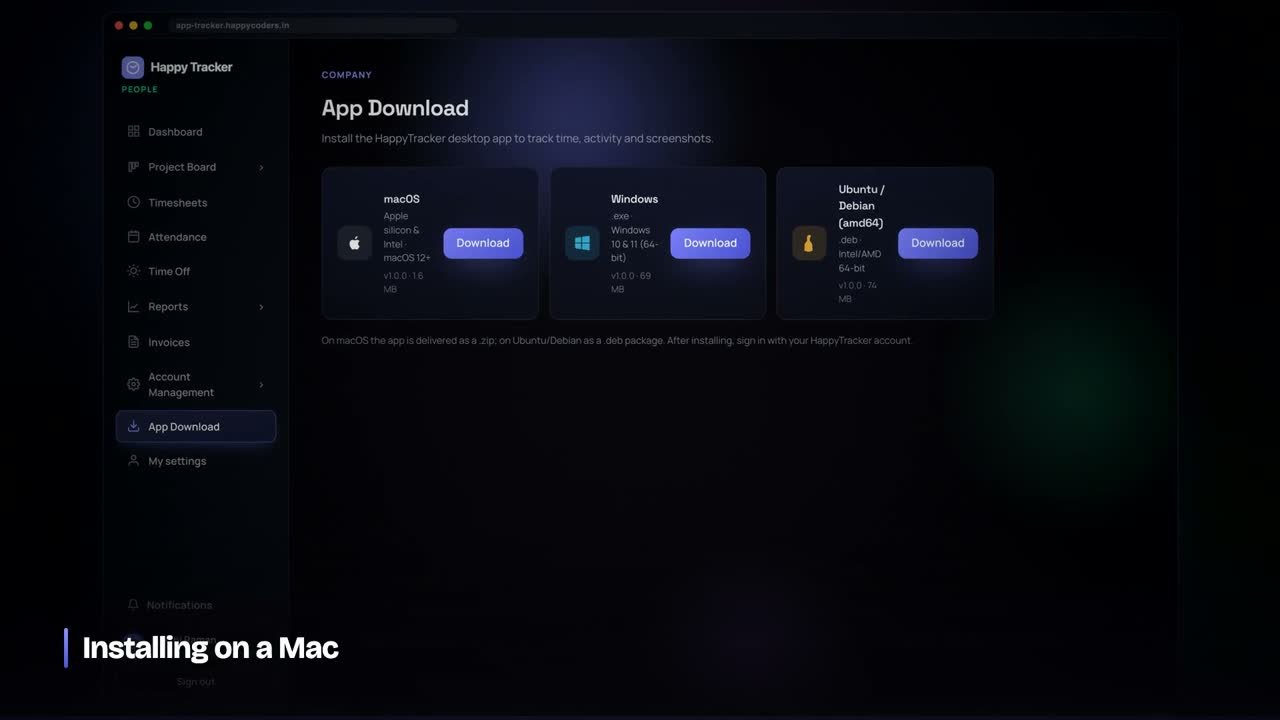
- “Signed out, please log in again” — somebody signed in to this account on another machine. One account holds one desktop tracker at a time.
- “Your organisation does not allow clocking in from the web” — your company permits the desktop app only. Clock in from the tracker, or ask an admin for a browser exception.
 Watch the tutorial · 7:32
The project board, sprints and tasks
The board is where work is planned and picked up. Columns are stages, cards are tasks, and every task can be tracked against so its real cost is recorded next to its estimate.
Reading the board
Five columns run left to right: To Do, In Progress, In Review, Sign Off and Done. Drag a card between them, or change the status inside the task.
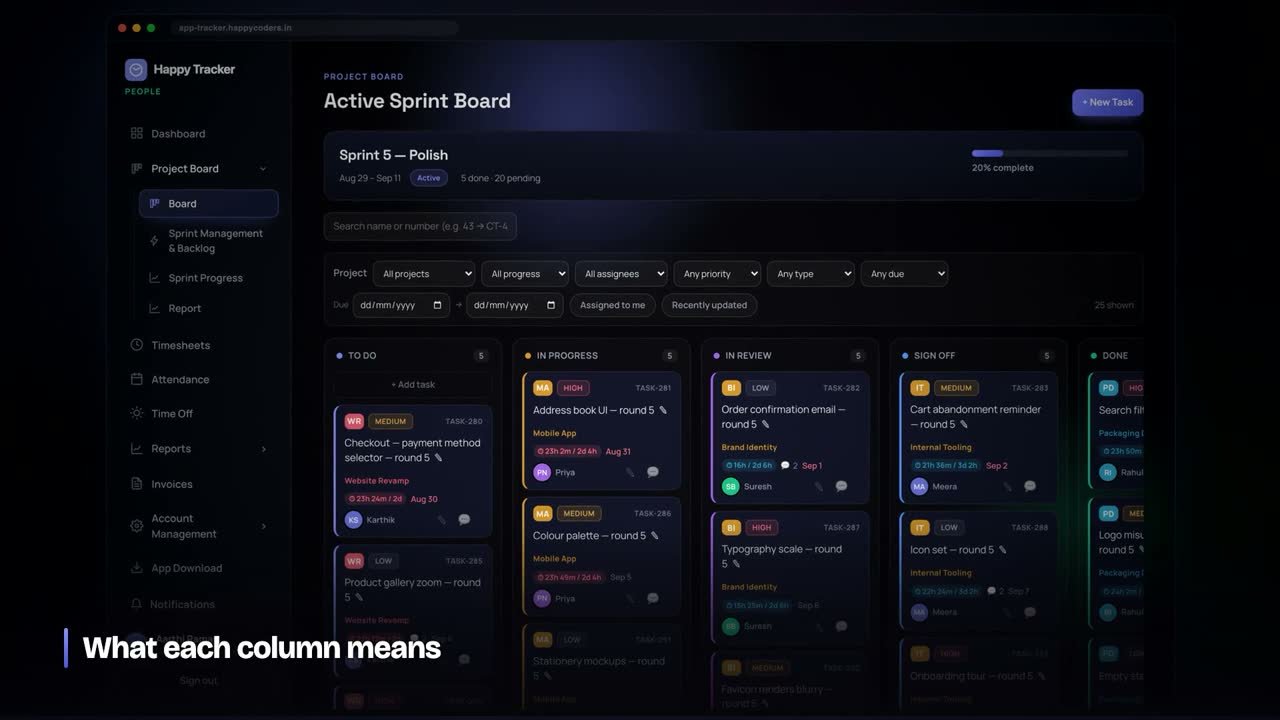
The board always shows the active sprint. Sprint 8 being active means the board shows Sprint 8, and work planned for Sprint 9 lives in Sprint Management until Sprint 9 becomes active. This is deliberate: one company, one cadence, one answer to what everyone is doing this fortnight.
What is on a card
- Ticket number — CT-376 and the like. This is what people quote in chat, and the search box jumps straight to it.
- Type and priority as coloured badges.
- Estimate and due date.
- Assignee, or Unassigned.
- Labels, which is how most teams filter.
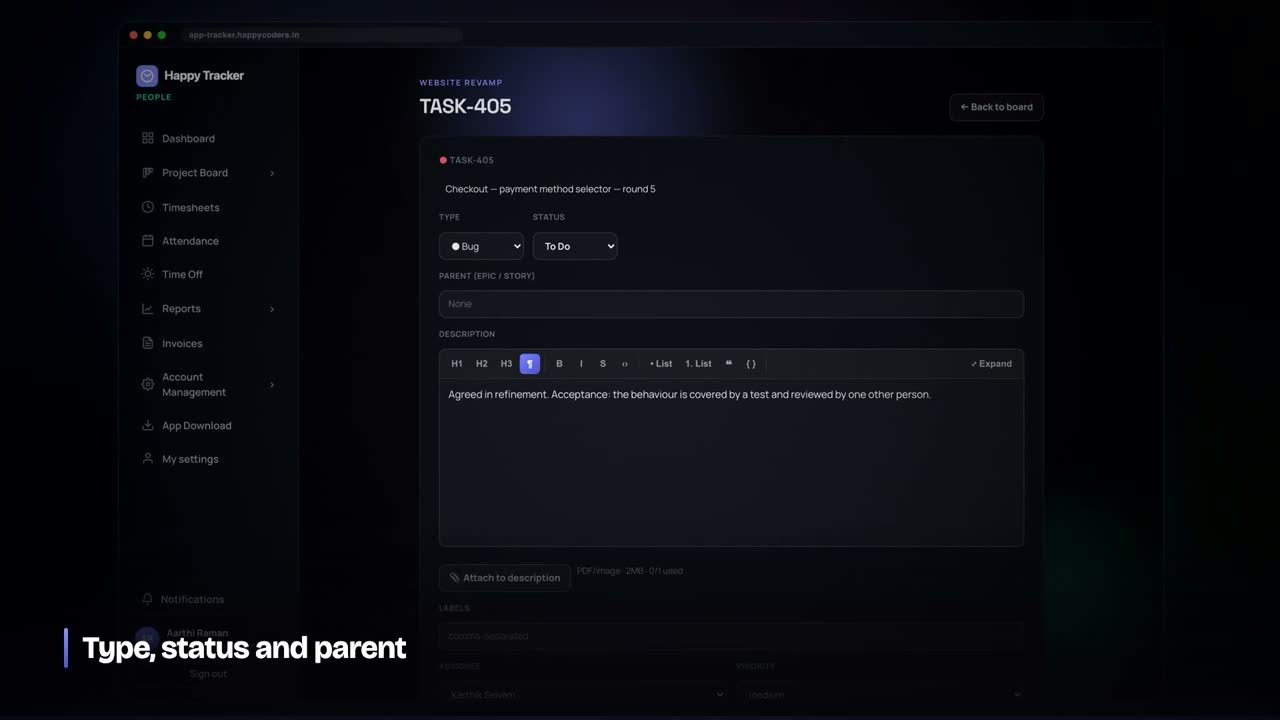
Filters
Above the board: project, progress, assignee, group, priority, type, label and due date, plus Assigned to me. The count of what is showing is always displayed, so it is clear when you are looking at a filtered view rather than everything.
Sprint management
Open Sprint Management & Backlog for every sprint at once, including ones that are not active. Create sprints, move tasks between them, and plan ahead. Exactly one sprint is active at a time; when a sprint ends, mark the next one active and the board follows.
 Watch the tutorial · 11:45
Timesheets and attendance
Nobody fills in a timesheet. It is built from clock events as they happen, and every number on it can be expanded into the sessions it came from.
The weekly grid
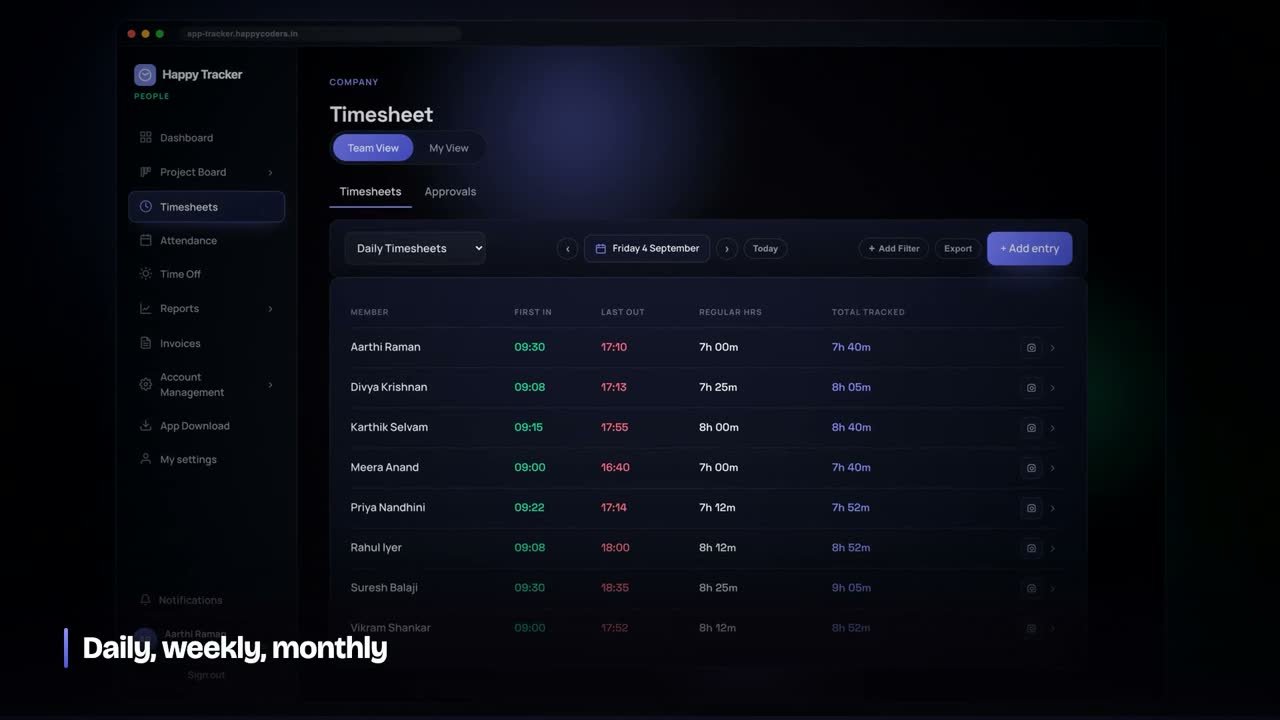
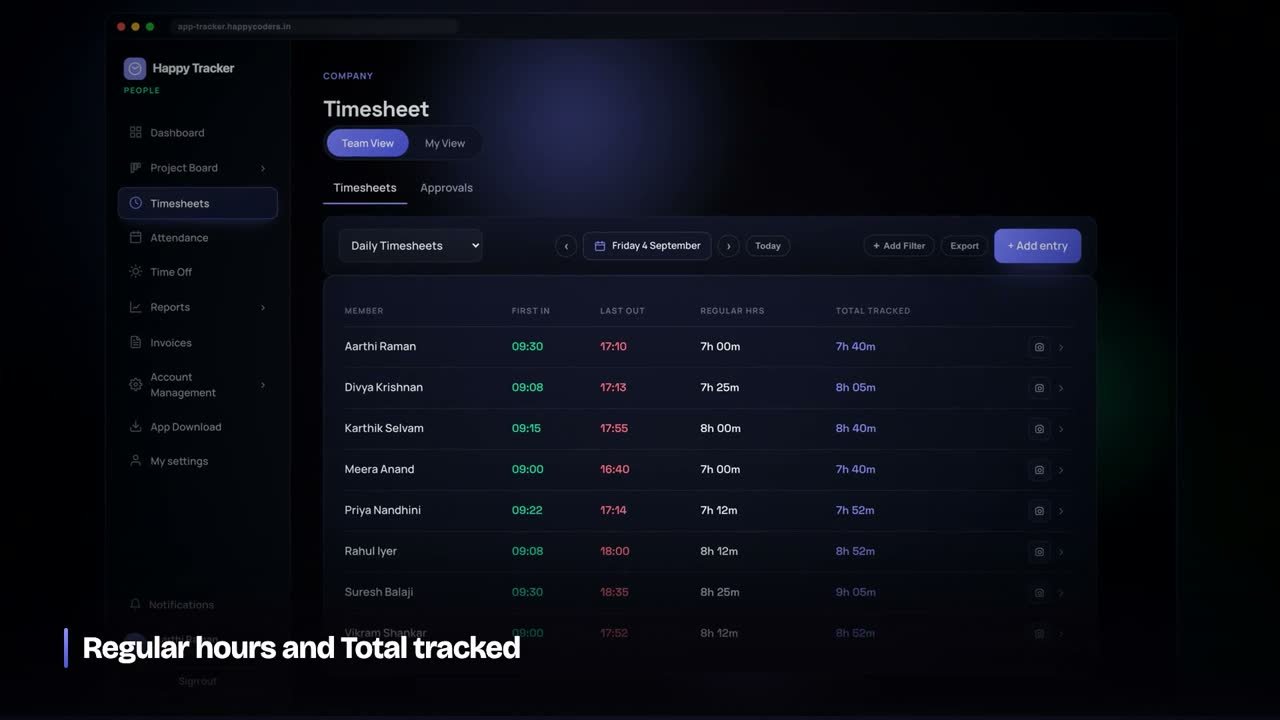
People down the side, days across the top. Each cell shows first in, last out, regular hours and total. Colour tells you the state at a glance: present, absent, on leave, or a non-working day.
Opening a day
Click any cell to see the individual sessions inside it — each clock-in and clock-out, breaks marked separately, with times. If screenshots are enabled you will see the captures from that day here too.
Adding time by hand
Forgot to clock in? Use Add time entry. Pick the date, the start and end time, the project and the activity. Managers and admins can add an entry for any member; employees can only add their own.
Manual entries are recorded in the audit log with who created them. That is intentional — a sheet that is mostly tracked with a few corrections is trustworthy, and one that is entirely manual is not.
Approvals
Managers and admins approve a week from the Approvals tab. Approving locks it: entries inside an approved week cannot be created, edited or deleted, and clocking in to it fails. Unlocking is possible and is itself recorded.
Owners have nobody above them, so their weeks read as auto-approved. The page says “no approver needed” rather than showing a control that would do nothing.
Attendance
The Attendance page is the same data arranged for payroll: per person per day, first in, last out, hours worked, and the state of the day. It exports to CSV, and prints to PDF.
 Watch the tutorial · 8:33
Idle time and activity tracking
This is the part people ask about most. Here is exactly what is recorded, what is not, and how idle time is decided.
What an activity block is
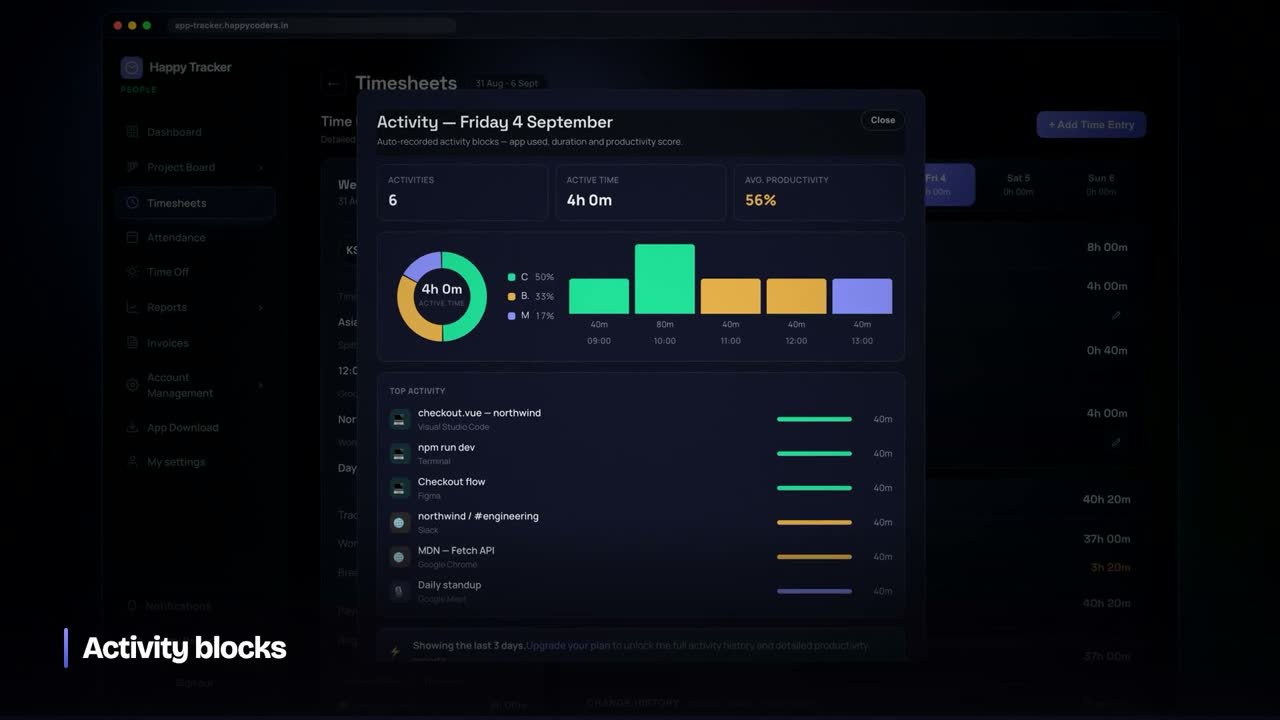
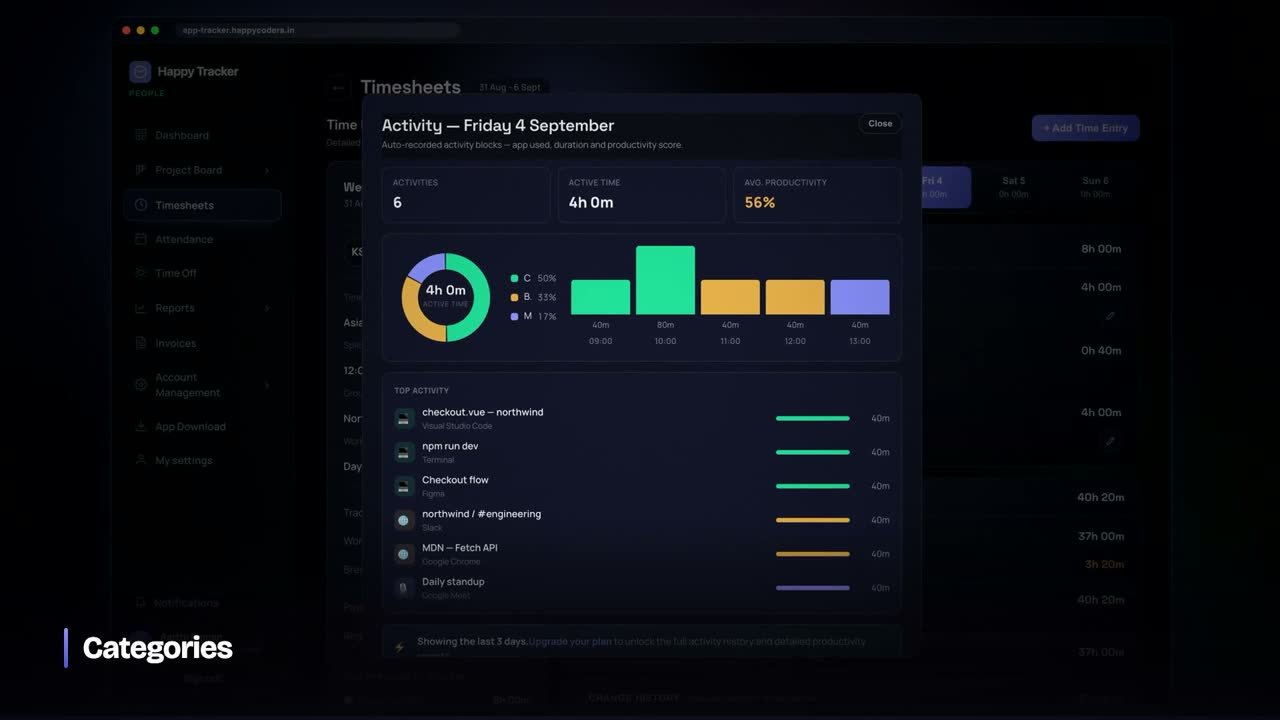
While you are clocked in on work, the desktop tracker records short blocks. Each one notes the application that was in front, the window title, how long it lasted, and how many seconds passed with no keyboard or mouse input.
What is never recorded
- No keystrokes. There is no keylogger in the product.
- No clipboard contents.
- No camera or microphone. Ever.
- No browsing history. The window title is not a list of every page you visit.
- Nothing at all while clocked out. Recording stops the moment the session ends, and the tracker says so on screen.
Idle time
Idle means no input at all — not “unproductive”. Reading a document, sitting in a meeting and thinking about a hard problem all register as idle, and all of them are work. Idle time is evidence, not a verdict.
After a stretch of no input your company has configured, the tracker warns you on screen. If there is still no response the session is closed at the moment the idle stretch began, not at the moment it was noticed, so you are never credited with the idle period.
Categories
Applications are mapped to categories — coding, communication, design, documents, browsing — so reports read in terms of work rather than process names. If a block has been categorised wrongly you can correct it yourself.
 Watch the tutorial · 6:51
Time off, leave approvals and holidays
Leave types, requests, approvals, balances and the company holiday calendar.
Applying for leave
Open Time Off and choose Apply. Pick a type, the dates, optionally a half day, and add a reason. Your remaining balance for that type is shown before you submit.
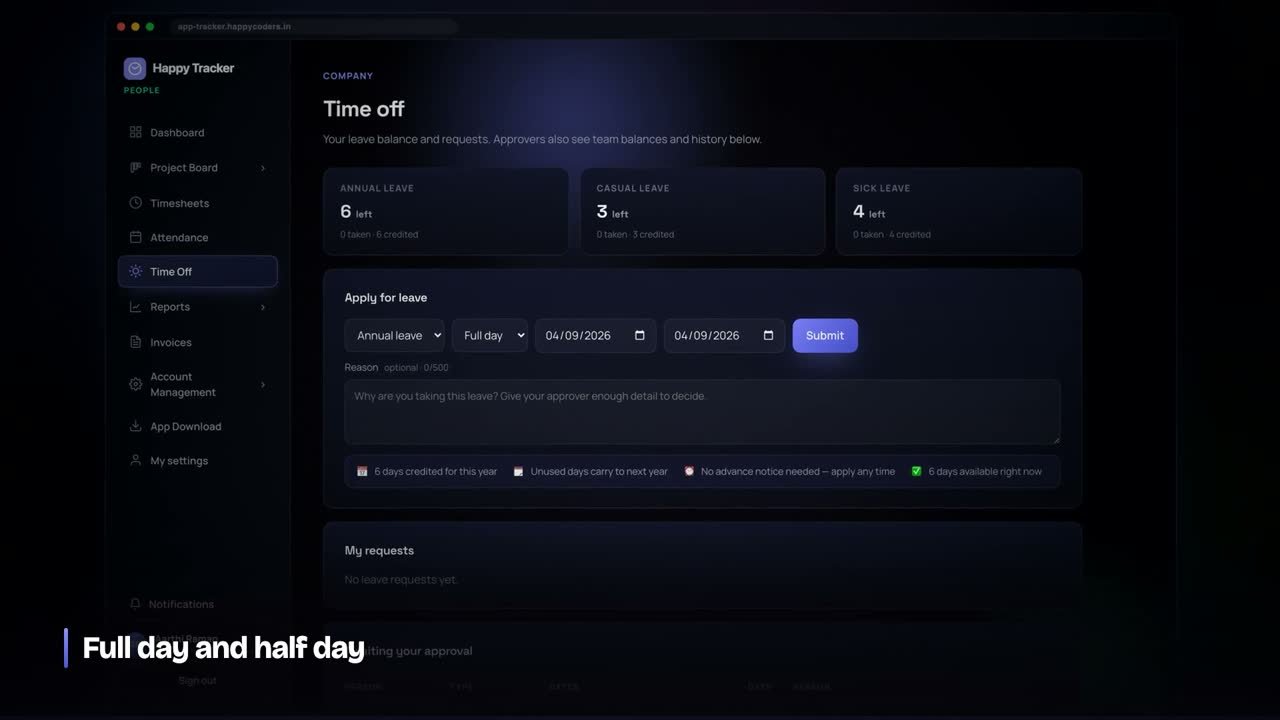
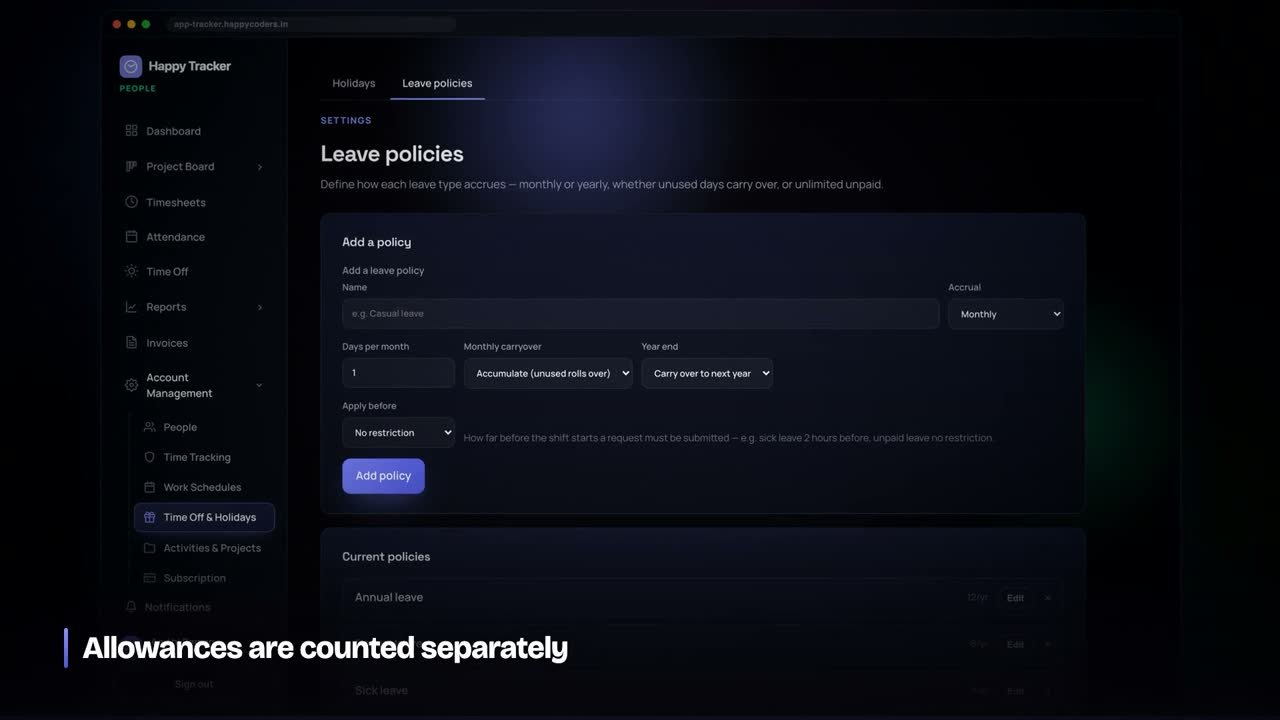
Some leave types require notice — two hours before your shift, or two weeks. If a request breaks that rule the message tells you the rule, not just that the request was rejected.
Approving
Owners, admins and managers see requests waiting for them. Approve or reject with a note; the person is notified either way. Nobody can review their own request, and an owner’s own leave is approved automatically because there is nobody above them to ask.
Balances
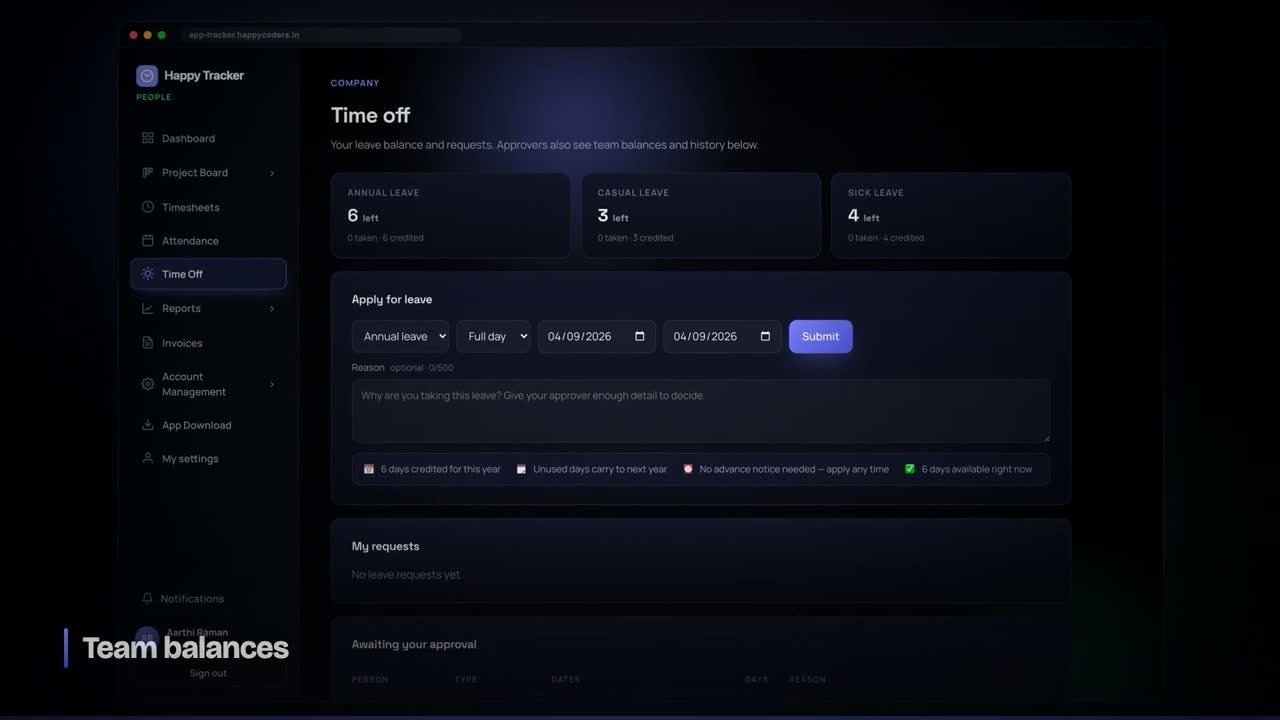
Balances are calculated, never stored, so they always agree with the requests behind them. Each shows what is available with what has been taken and credited underneath.
- Prorated on joining — someone who joins in June gets a share of the annual allowance, with the joining month counted in full.
- Yearly or monthly accrual — granted at the start of the year, or earned month by month.
- Carryover — unused days can expire at the year boundary or carry forward, depending on the policy.
- Adjustments — an admin can add or remove days manually, with a reason, and it is recorded.
Holidays
Admins maintain the company holiday calendar and everybody can see it. A holiday inside a leave request does not consume a day of your allowance.
 Watch the tutorial · 8:26
Reports: summary, team and productivity
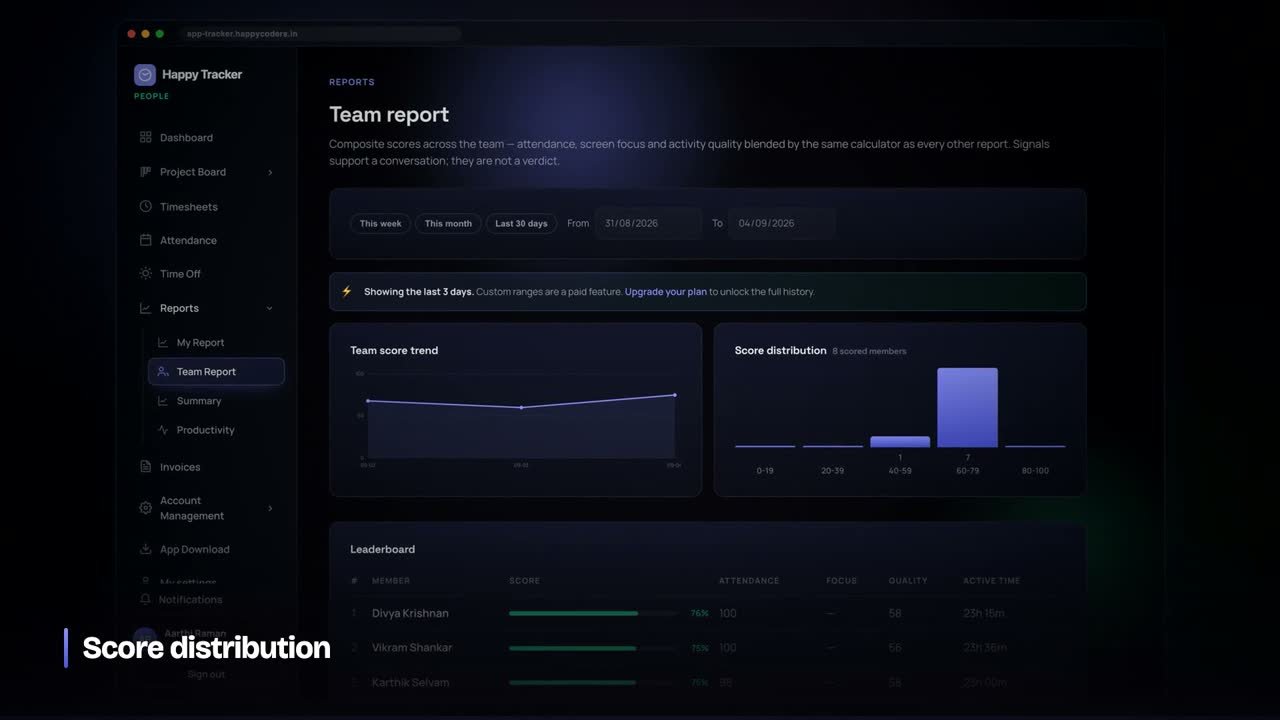
Four reports, each answering a different question. All of them export to CSV and print to PDF.
Summary
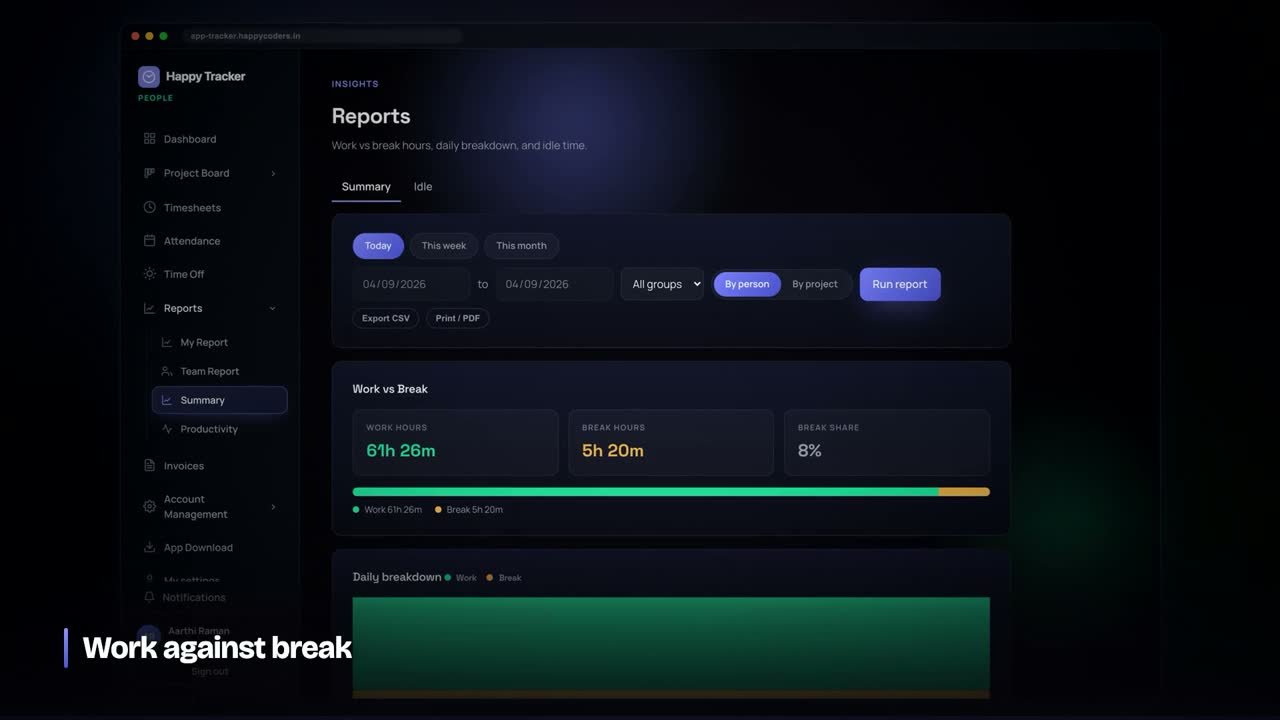
Total hours for a period, grouped by person or by project, split into work and break, with billable time separated. This is the report to use for an invoice or a client update.
Attendance
Per person per day: first in, last out, hours worked, and the state of the day. Rows expand into the individual sessions. This is the payroll report.
Idle
Tracked, active and idle time per person, with the idle percentage, expandable into each individual stretch with its time span and application. Read the ratio over time rather than any single day.
My report
Every employee can see their own hours, activity and productivity, whatever their role. Nobody is measured by numbers they cannot see.
All four reports honour your role. An employee sees only their own data; managers and admins see the team, and can filter by group or by person.
 Watch the tutorial · 8:37
People, roles, permissions and leave policy
Who is in the workspace, what each role can do, and how leave policies are configured.
The four roles
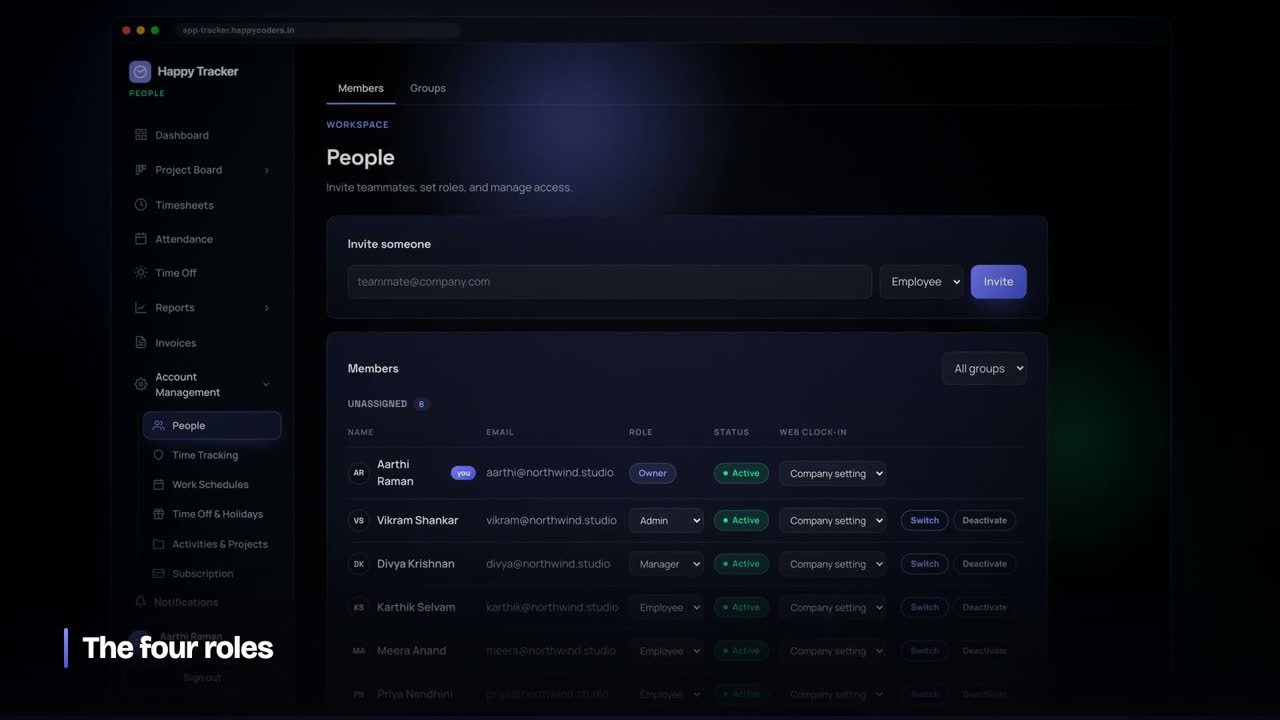
- Employee — their own timesheet, leave, reports and assigned projects. Cannot see a colleague’s hours.
- Manager — the team’s work, timesheet and leave approvals, team reports. Cannot change company settings or see billing.
- Admin — people, projects, clients, policies, privacy settings and the audit log.
- Owner — everything an admin has, plus the subscription, plan and seats.
Inviting people
Enter an email, choose a role, send. The invitation email carries a link; if the address already has an account, accepting it asks for that account’s password — a forwarded link alone can never grant access.
When somebody leaves
Deactivate them rather than deleting. Access ends immediately and everything they did is kept: their tracked hours still appear in last quarter’s reports, their name stays on the invoice lines it produced. Reactivating restores access and takes a seat again.
Viewing the app as somebody else
An owner or admin can view the workspace as one of their own members, without a password, to reproduce a problem. An amber banner shows throughout, it is recorded in the audit log, and it can never be used to become somebody with more authority.
Leave policy
Create leave types with an annual allowance, yearly or monthly accrual, carryover behaviour and a minimum notice period. Deleting a type that has history is not possible — it is archived instead, so past requests are never lost.
 Watch the tutorial · 6:59
Organization settings: screenshots, intervals and device rules
Every rule that applies to the whole company. These are the settings employees ask about, so they are worth understanding before switching any of them on.
Screenshots
Off by default. Switch them on and choose how often — the ceiling comes from your plan, and the actual interval is yours to set within it. Captures happen only while somebody is clocked in on work.
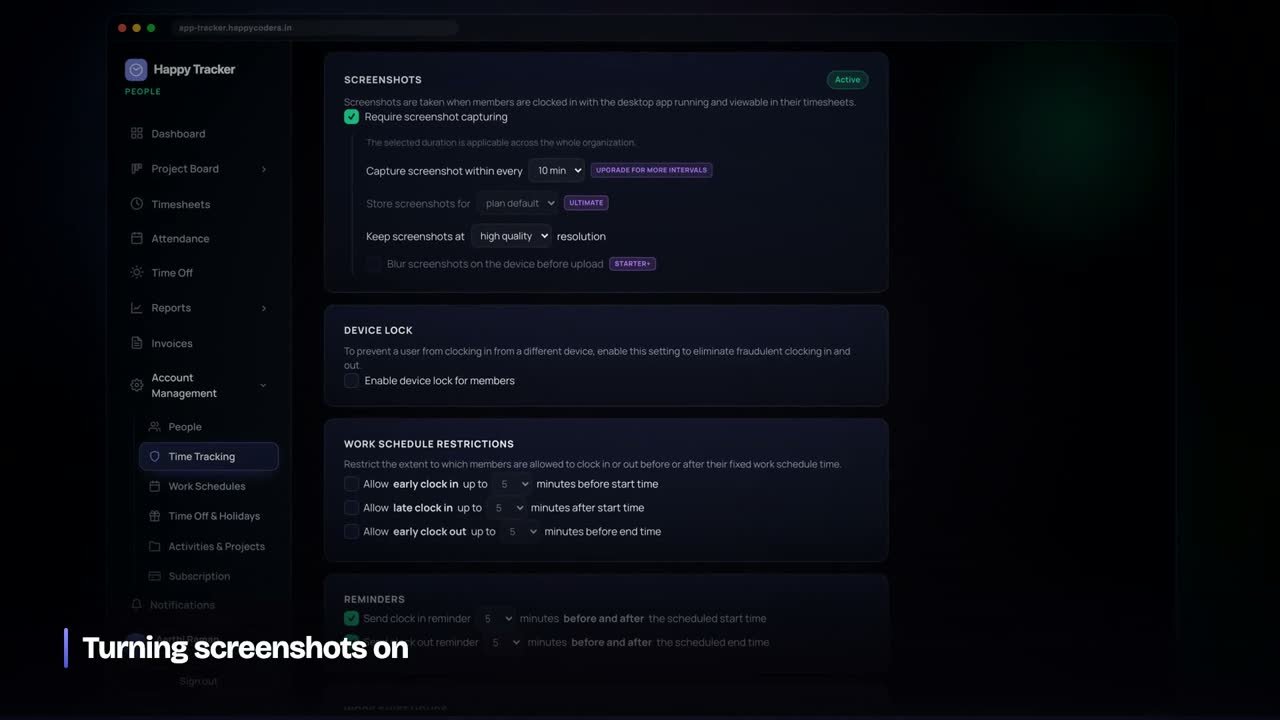
- Interval — how many captures per ten minutes. It is randomised within the window so it does not fall on a predictable clock.
- Blur — applied on the employee’s machine before upload, so the unblurred image never leaves it. Layout stays visible, text does not.
- Retention — how long captures are kept before automatic deletion. Set by your plan.
Automatic clock-out
Three rules close a session that was left running, and each closure is recorded with the reason so nobody loses time silently.
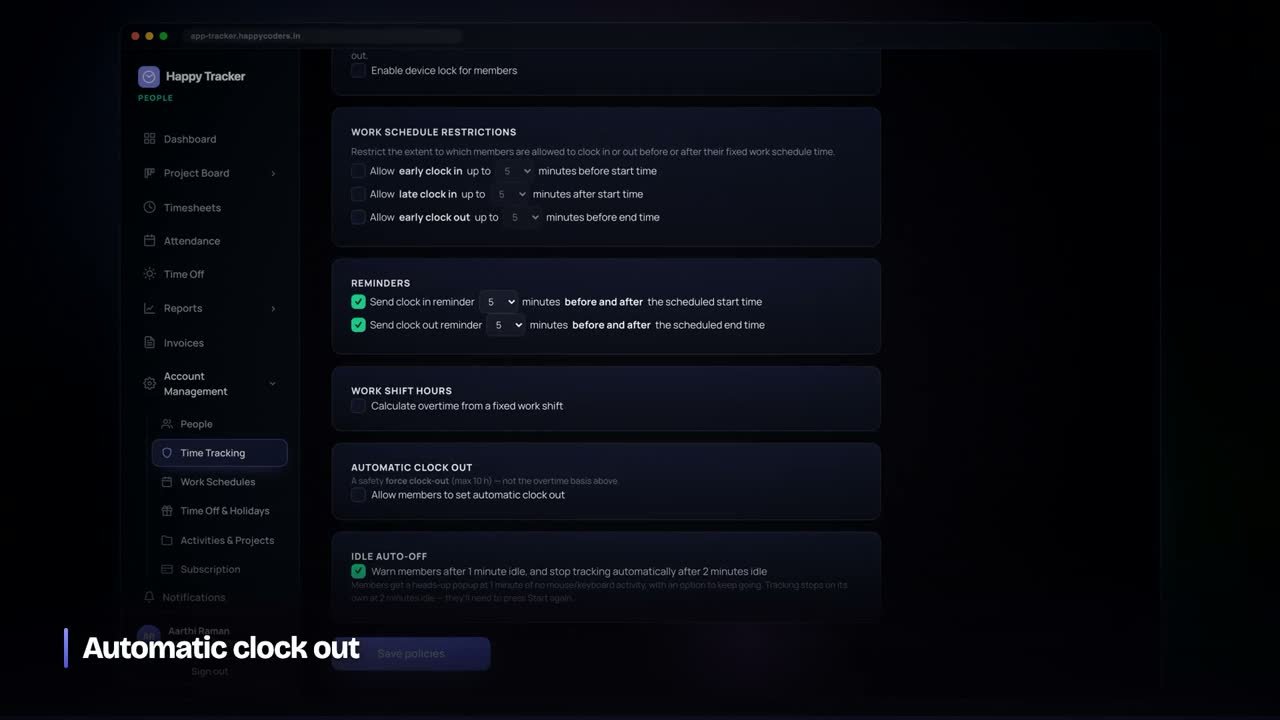
- Idle — no input for the configured stretch. Closed at the moment the idle period began.
- Limit — no single entry may exceed your configured maximum, with a ten-hour backstop even if the policy is off.
- Stale — the tracker stopped reporting entirely, so the machine was shut down. Closed at the last activity it did report.
Device restrictions
Choose whether people may clock in from a web browser, from the desktop apps, or both. If you allow desktop only, individual members can still be given a browser exception from the People page.
Time rounding
How tracked time is rounded on reports and invoices. This changes what clients are billed, so the effect is stated next to the setting rather than hidden.
Work schedule and holidays
The company working week and hours, used to decide which days count as working days for attendance, leave and notice periods.
 Watch the tutorial · 6:46